I use PRTG to monitor equipment on my home network. It’s what we use at the MSP I work at and, to learn more about it, I’ve now been using it at home for a couple of years.
Paessler make it free for up to 100 sensors. Which is fine for a home environment.
As it runs only on Windows, though, you need a license for that. Which is going to be costly, Right?
Not necessarily.
Windows Server is available in an Evaluation Edition which is free, but with the following main caveats:
- Can only be licensed for 180 days at a time.
- Can only be used for a maximum of 3 years.
This really isn’t too much of an issue, mostly. Except there isn’t really an easy way of monitoring how much time is left before you have to re-arm the license. Which means you can wake up to your VM or server being down.
Luckily, I was able to find who to find this via WMI. Which is one of the sensors types PRTG supports.
Step 1 – Create the WMI Query
Browse to C:\Program Files (x86)\PRTG Network Monitor\Custom Sensors\WMI WQL scripts
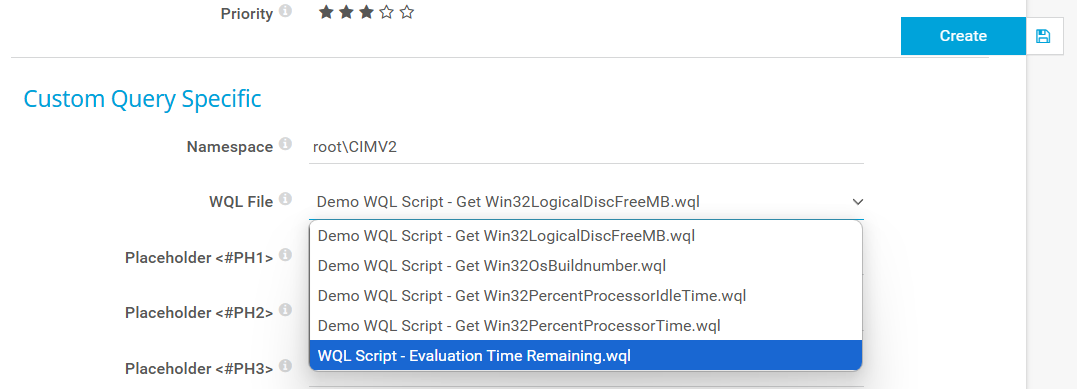
Create a file something like WQL Script – Evaluation Time Remaining.wql
Edit it to contain the following line:
SELECT GracePeriodRemaining From SoftwareLicensingProduct Be aware, this returns a value in minutes. Don’t worry, this is addressed later.
Step 2 – Create the Custom Sensor
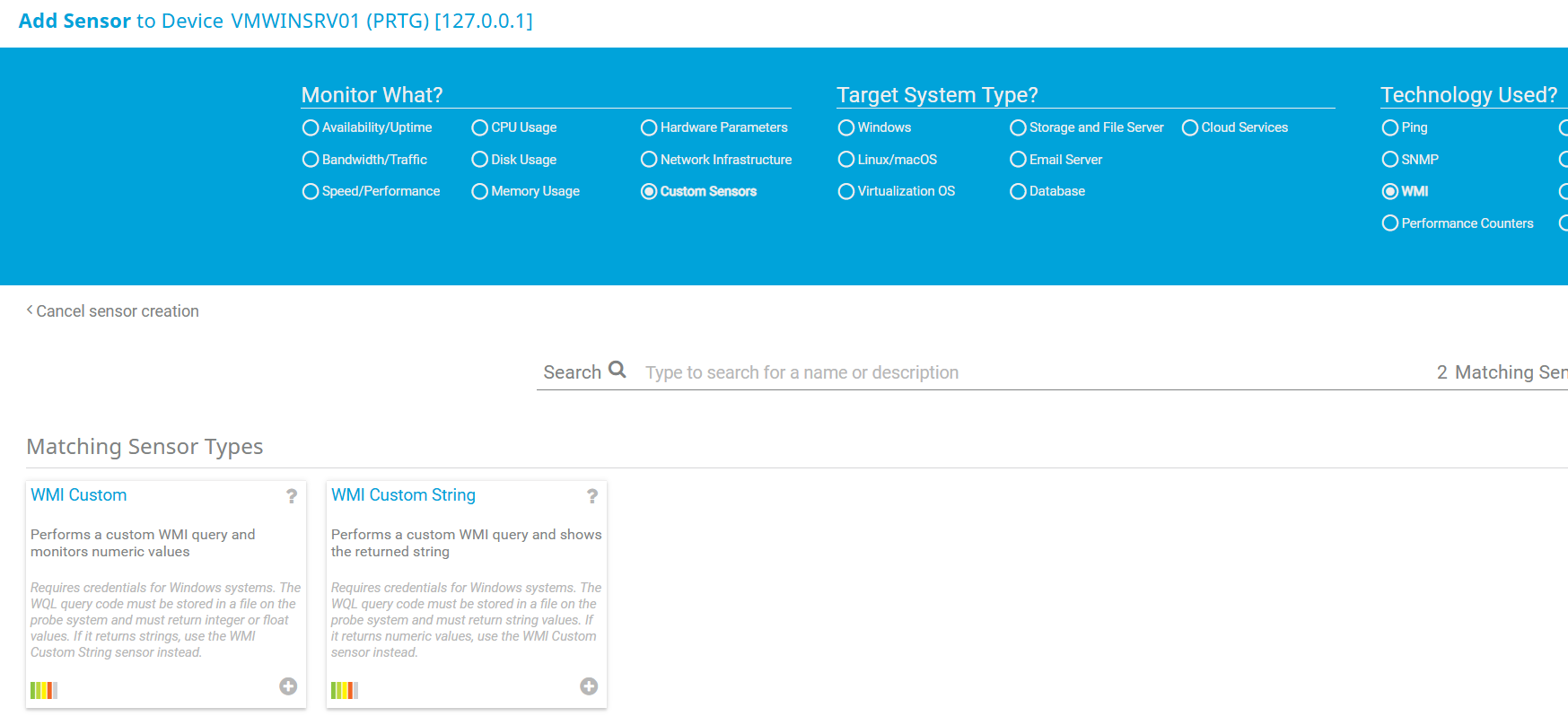
Firstly, entry for your Windows Server and select Add Sensor. Then select WMI Custom. This is for numeric values, such as time counters.
For WQL File, select the file you just created from the drop-down list.
The scanning interval does not need to be the default of 1 minute. I set mine to 30 minutes but hourly, or longer, will be fine. Ultimately, we’re after a countdown in days.
Once this sensor is up and running, it’s time to do some maths.
Step 3 – Create a Sensor Factory Sensor
These type of sensors allow you do things like pull together things from multiple devices, or to do operations on existing results.
There are 1440 minutes in a day, so we can use one of these sensors to do this calculation for us.
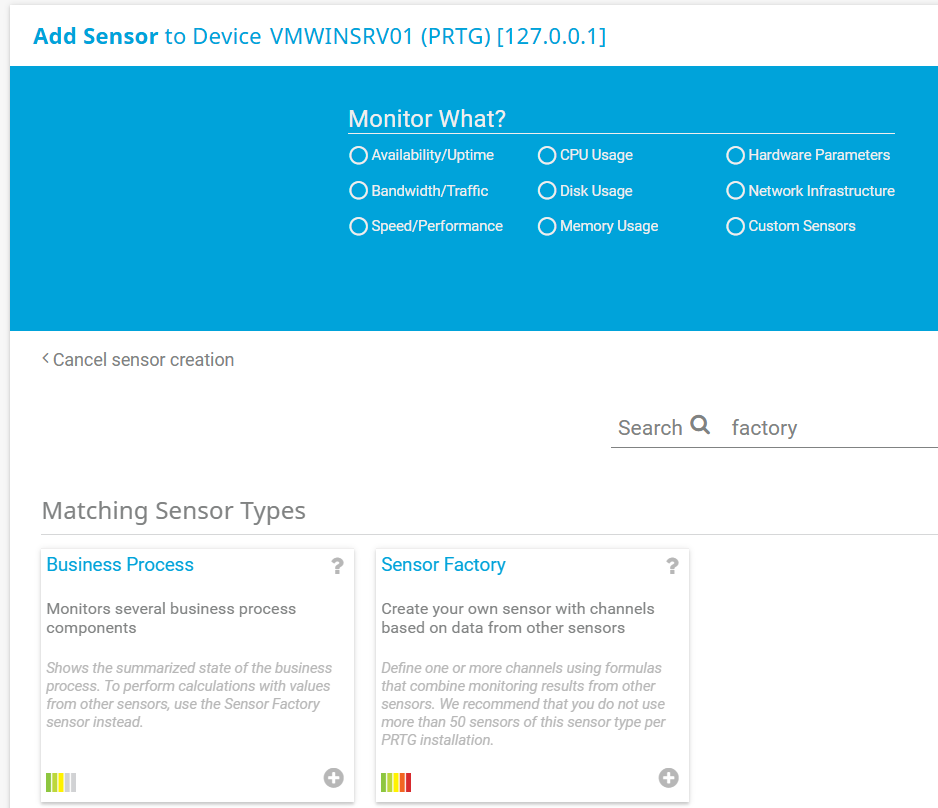
Go to Add Sensor, search for Sensor Factory and create one.
For the Channel Definition you will need the sensor ID for the WMI query, in my case this is 2728, and the channel index. Probably 0, like mine.
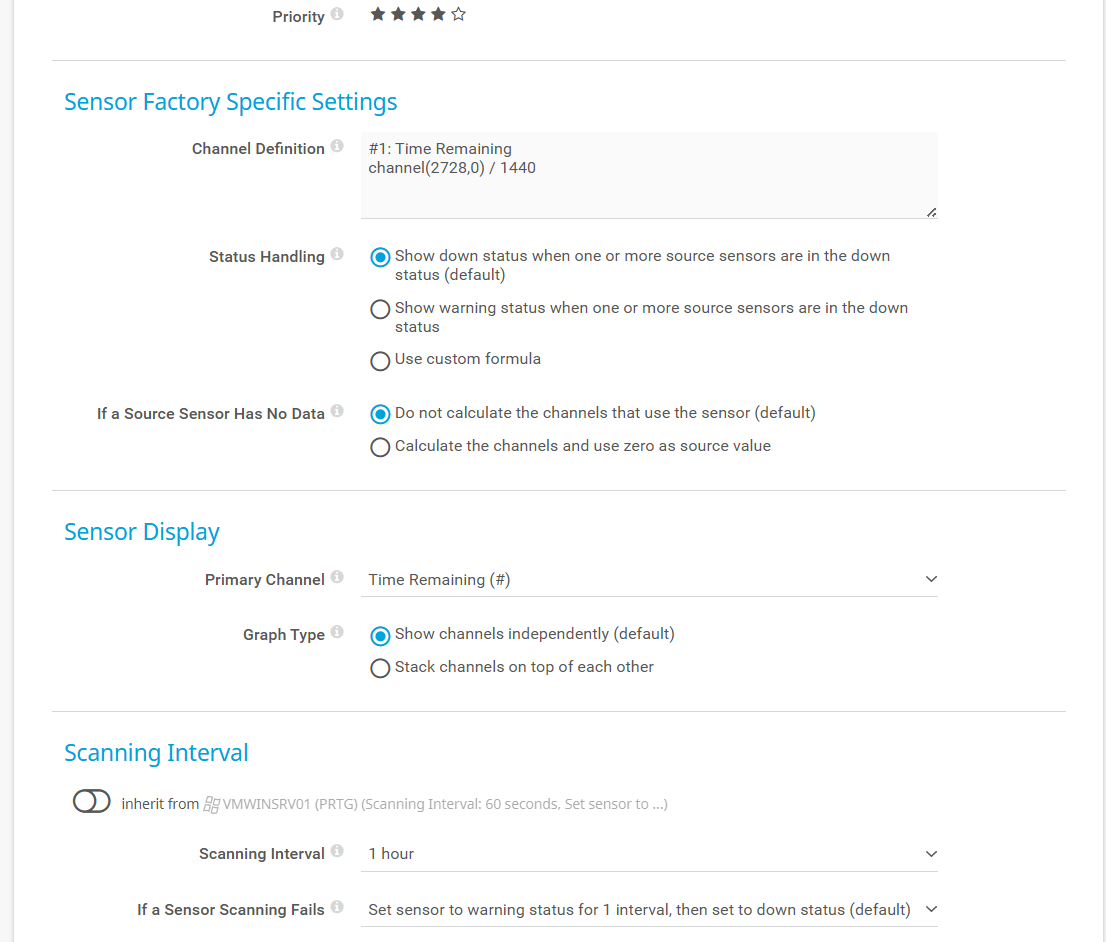
I’ve labelled mine “Time Remaining”, references the WMI sensor and divided the result by 1440.
I’ve also set it to recalculate hourly.
Step 4 – Format the Channel and Alerting
In the Channel Settings, I have also made the following changes:
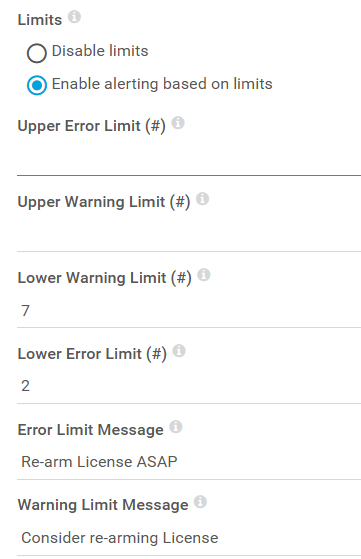
Alerting Thresholds
I’ve set these to Warning at a week and Alert at 2 days.
Numerical Formating
If you leave decimal places at Automatic then you’ll get numerical values like “160.6 days” which isn’t really necessary.
So I just set it to 0, which rounds it to the nearest whole number

So now, rather than having to logon to the server desktop to check the remaining time, or waking up to a down VM, I’ll get PRTG alerts telling me it’s time to give the server a re-license.
 Rants in the Void